Lost files on Windows? Compare 5 data recovery tools by free limit, price and ease of use, and find the right one for deleted, formatted or RAW drives.
You plug in an old USB drive to grab some family photos and Windows says it can't open it. Or you delete a work document by accident, a few hours before it's due. Files also go missing after a drive gets formatted, a partition stops showing up, or the PC crashes at the wrong moment.
It feels final, but often it isn't. When you delete a file, Windows usually just marks that space as free. The data stays there until something new gets written over it. That gap is where Windows data recovery software does its work and it's why acting quickly matters.
Picking a tool is the harder part. Some are built for people who just need a few deleted files back. Others handle partition recovery, RAID arrays and setups most home users will never touch. The free versions differ a lot too and some of them won't actually save much for you.
Below we compare five options: Stellar Data Recovery for Windows, Wondershare Recoverit, Recuva, Microsoft's Windows File Recovery and R-Studio. For each one we cover what it does well, how easy it is to use, what the free version really gets you and where it falls short.
Lost files right now? Stop saving anything to that drive, don't install recovery software on it and don't format or "repair" it when Windows asks. Then read the section on what to do right after deleting or formatting files, further down this page, before you scan.
Quick answer: Which Windows data recovery software should you use?
No tool can promise to bring everything back. Whether a file is recoverable depends on whether it's been overwritten, the physical condition of the drive, how badly the file system is damaged and how fragmented the file was. With that said, here's where to start:
- Stellar Data Recovery for Windows. Guided and easy to follow, previews files before you pay, recovers up to 1 GB free, and its paid editions cover lost partitions, BitLocker drives, unbootable PCs and photo/video repair.
- Wondershare Recoverit. A step-by-step interface with media repair tools in paid plans. Its free tier is smaller.
- Recuva. Unlimited free recovery for home use, though it hasn't had major feature updates in years.
- Windows File Recovery. Microsoft's own tool, but it runs in Command Prompt and has no preview.
- R-Studio. The most control and the steepest learning curve. Its demo only saves files up to 256 KB.
What is Windows data recovery software?
Windows data recovery software is a program that scans a storage device for files that were deleted or became inaccessible, then copies them to a safe location. It works on internal hard drives and SSDs, external drives, USB flash drives and memory cards that use Windows-compatible file systems such as NTFS, exFAT and FAT32.
Most tools use two kinds of scan:
- A quick (file-system) scan reads the records the file system leaves behind, such as entries in the NTFS Master File Table. It's fast and usually restores original file names and folders. It works best for recent deletions on a healthy drive.
- A deep (signature) scan reads the drive sector by sector, looking for the known "signatures" at the start of each file type, such as the header of a JPEG or MP4. It can find files after formatting or corruption, but the results may lose their original names and folders, and large fragmented files can come back incomplete.
Every tool in this list uses some version of these two approaches. They differ in how many file types they recognise, how well they rebuild folder structures, which situations they handle (lost partitions, RAID, encrypted volumes) and how much they'll let you recover for free.
5 best Windows data recovery tools, reviewed
Each tool is assessed on the same criteria: supported Windows versions and storage devices, recovery from deleted and formatted media, deep scanning, preview, ease of use, free-version limits, pricing and licensing, and known limitations.
1. Stellar Data Recovery for Windows
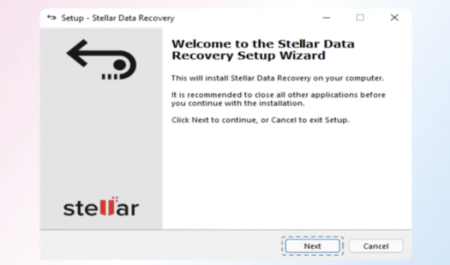
Stellar Data Recovery for Windows deals with the usual ways files go missing: accidental deletion (including Shift + Delete and an emptied Recycle Bin), formatting, file-system corruption, RAW drives and lost or inaccessible partitions. It works with internal and external hard drives, SSDs, USB flash drives and memory cards using NTFS, exFAT, FAT16 and FAT32, on drives up to 16 TB. Version 14, released in October 2026, runs on Windows 11, 10, 8.1 and 8, plus Windows Server 2016, 2019 and 2022.
The process is simple:
- Pick the file types you want: documents, photos, videos, audio, email and so on.
- Choose the drive or folder to scan. If a partition has disappeared, the "Can't Find Drive" option searches for it; for a RAW drive, you can scan the whole physical disk.
- Preview what it finds, then save the files you need to a different drive.
If the standard scan comes up short, Deep Scan reads the drive sector by sector and searches by file signature, which is how it finds files after a format or when Windows can't read the drive at all. Version 14 extends this RAW recovery to complete sectors of SD, microSD, SDHC, SDXC and CompactFlash cards formatted as FAT32 or exFAT, which matters if your photos came off a camera card. It also recognises RAW camera files, and it can recover data from BitLocker-encrypted drives and BitLocker disk images, as long as you have the password or recovery key.
Its free version lets you to recover up to 1 GB without registering. That covers a folder of documents or a modest batch of JPEGs, but probably not a full card of RAW files. It's also a fair way to confirm the software can see your files before you pay.
Pricing:
- Standard ($59.99): unlimited recovery of documents, photos and videos from internal and external drives, plus lost-partition and encrypted-drive recovery. Enough for most home users.
- Professional ($79.99): adds recovery from PCs that won't boot (via bootable media), disk imaging for failing drives, SMART drive monitoring, and repair of corrupt photos and videos.
- Technician ($99.99): adds recovery from software and hardware RAID 0, 5, 6, SHR and nested arrays, including virtual RAID reconstruction.
2. Wondershare Recoverit
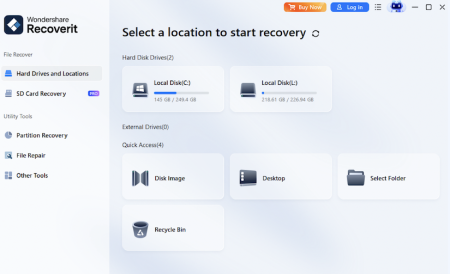
Recoverit walks you through recovery step by step and supports a wide range of file types and devices. On Windows, it covers deleted files, external drives, memory cards, lost partitions and some system-crash cases, and Wondershare lists support for Windows 11, 10, 8 and 7. What you get depends on the plan.
You can preview files before recovering them, and paid plans include tools for repairing corrupted files, photos, videos and so on. That makes it worth a look for photographers and video creators who need media files back along with ordinary documents.
Its free version can recover up to 500 MB on Windows, which is about half of Stellar's allowance. Keep in mind that a file showing up in the scan results won't necessarily open properly once it's recovered; the preview is your best check.
Pricing:
Windows plans were $64.99 a month, $74.99 a year or $134.99 for a perpetual license, each covering two PCs. Monthly and annual plans renew automatically, and the perpetual license covers the major version you buy rather than future major upgrades.
3. Recuva
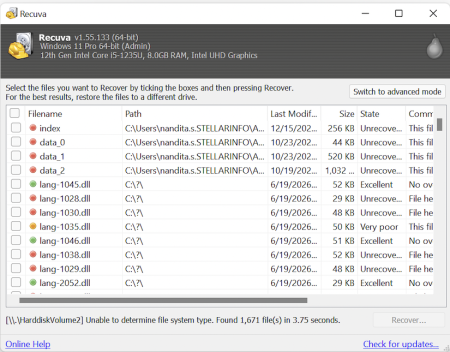
Recuva is a small, lightweight tool from the makers of CCleaner for files you've accidentally deleted from a Windows PC, USB drive or memory card. The free edition has no recovery cap. A wizard keeps things simple, and when the normal scan misses something, Deep Scan looks harder for traces of the deleted data.
If you just deleted something and want it back, Recuva is often all you need, and it's far less complicated than the bigger suites. It can also try recovering from damaged or recently formatted media. How well that goes depends on the drive's condition and whether the data has been overwritten.
Pricing:
Recuva Free and Recuva Professional ($24.95) are licensed for home use only, so it isn't the right choice for a work machine. It also has no lost-partition or RAID recovery. If you're a home user who just lost a file and you'd rather not pay, try Recuva first.
4. Windows File Recovery
Windows File Recovery (winfr) is Microsoft's own command-line app for getting back deleted files that are no longer in the Recycle Bin. It's a free download from the Microsoft Store for Windows 10 (version 2004 or later) and Windows 11, and it works on local storage: internal drives, external drives and USB devices. Cloud storage and network shares aren't supported.
There's no point-and-click interface and no preview. You type a command that tells it four things:
- the source drive
- where to save recovered files (this must be a different drive)
- which mode to use
- which files to look for
For example, winfr C: E: /regular /n *.pdf /n *.docx (one of Microsoft's own examples) recovers deleted PDF and Word files from the C: drive into a recovery folder on the E: drive.
Its Regular mode is for recently deleted files on a healthy NTFS drive. Extensive mode is for everything else: files deleted a while ago, formatted or corrupted NTFS drives, and any FAT or exFAT device such as an SD card or small USB stick. If you're not sure, Microsoft suggests starting with Regular and switching to Extensive if it finds nothing.
If you've never used Command Prompt, the syntax can trip you up. The tool won't let you save to the partition you're scanning, so have a USB drive or external disk ready. And because it needs a drive letter as the source, it can't help with a partition that's disappeared. Read Microsoft's instructions before you run anything.
5. R-Studio
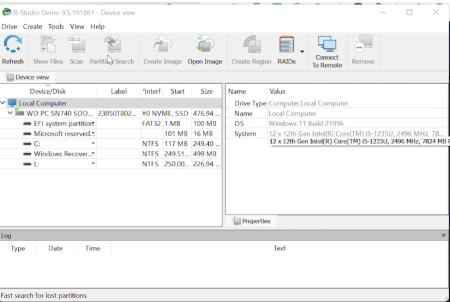
R-Studio is for people who want full control over the recovery process. The full R-Studio licence reads NTFS, ReFS, FAT and exFAT, plus file systems used by macOS (HFS+, APFS) and Linux (Ext2/3/4), which helps when a drive came from a different machine.
It can rebuild damaged or deleted partitions, run raw (signature-based) file recovery, reconstruct formatted RAID arrays and work from disk images, so a failing drive only has to be read once. That's why IT staff, repair technicians and experienced users tend to reach for it when a simpler tool gives up. The Technician edition adds features aimed at professional and forensic-style work.
The catch is the learning curve. To get much out of it, you'll need to know your way around partitions, file systems, disk layouts and RAID parameters. The demo is useful for checking whether R-Studio can find your files at all, and you can preview what it turns up. Saving is where it stops: the demo only saves files of 256 KB or smaller.
Pricing:
Windows licences are perpetual and split by file system, listed from US$49.99 (FAT and exFAT only) and US$59.99 (NTFS only) to US$79.99 for the full version, with a cross-platform Technician edition at US$899. Choosing the wrong edition is easy, so check file-system coverage before buying.
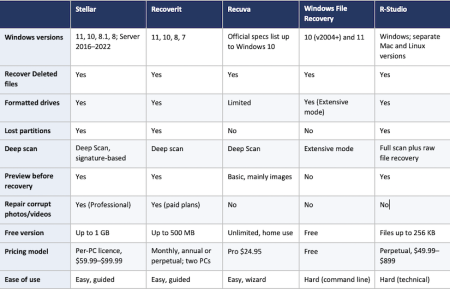
Windows data recovery software compared
Tips to do: Right after deleting or formatting files
What you do in the first hour has more effect on your chances than which tool you choose. Follow these steps in order:
- Stop using the drive. If it's a camera card, take it out of the camera and stop shooting. On a PC, avoid downloads, installs and saving files to the affected drive. As Microsoft notes, any use of the computer can create files that overwrite the space where your deleted data sits.
- Check the easy places first. Look in the Recycle Bin, OneDrive's recycle bin, File History or any backup you have. These take a minute and don't require scanning.
- Don't format or "fix" the drive. If Windows says "You need to format the disk before you can use it," click Cancel. Avoid running CHKDSK or repair utilities before you've recovered your files, because they can rewrite the file-system data recovery software relies on.
- Install the recovery tool on a different drive and recover to a different drive. Never save recovered files back to the drive you're scanning.
- Scan, then preview before you recover. If a file previews correctly, it will very likely open after recovery. If it doesn't, it may be partly overwritten or need repair.
- If the drive is failing, image it first. Create a disk image and scan the image, or take the drive to a professional. Scanning a failing drive over and over can finish it off.
Final verdict: Which Windows data recovery tool should you choose?
For most people who've lost photos, documents or videos on a Windows PC, external drive or memory card, Stellar Data Recovery for Windows is the best place to start. It's easy to follow, shows you what's recoverable before you pay, has the most generous free tier of the paid tools here, and its editions scale from simple deletions to lost partitions, unbootable PCs and RAID.
Recoverit is a close alternative for beginners, especially for media, though its free tier is smaller. Recuva handles simple deletions without costing anything. Windows File Recovery is a free option if you don't mind typing commands. And R-Studio is the one to pick when the job gets technical.
Whichever you choose, the first step is the same. Stop writing to the drive, work out what probably caused the loss, and then pick the tool that matches it.