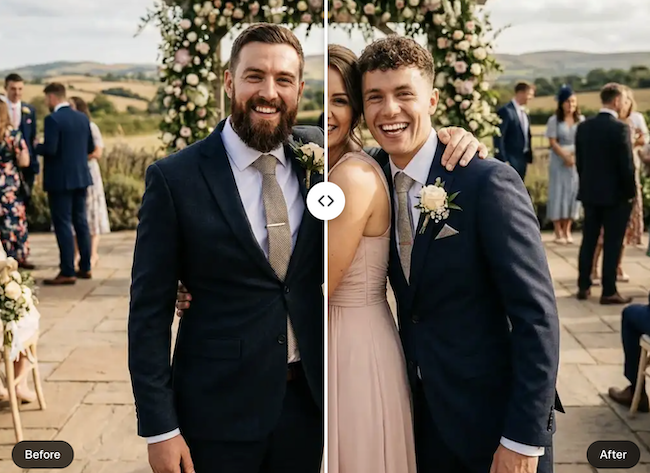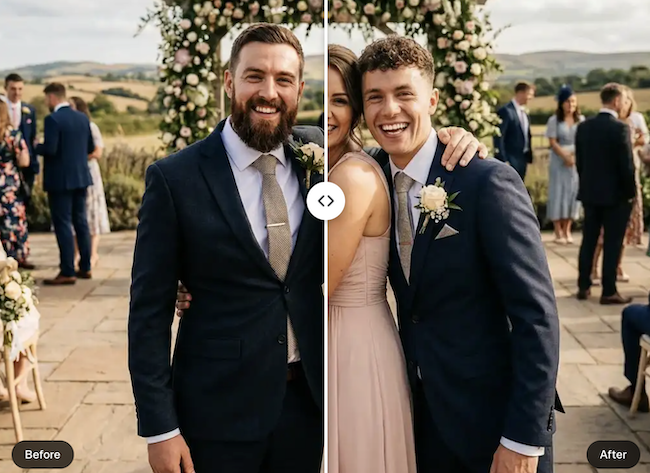
To add a person to a photo with AI, you upload the scene and a photo of the person, describe where they go and the model re-renders that area – matching light, shadow and perspective – instead of pasting a cut-out. The best tools do it in seconds. Here is the workflow, the apps worth using and how to keep it realistic.
Disclosure: This guide is sponsored by Overchat and links to its add-person tool. Prices come from vendor pages and 2026 reviews and can change — verify before buying.
How AI adds a person: It’s inpainting, not pasting
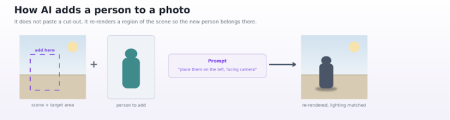
The key idea is that modern tools do not drop a cut-out onto your photo. They mask a region of the scene and regenerate it, conditioned on the person you uploaded and your written instructions. Because the model paints that area from scratch, it can give the new subject the same lighting direction, colour temperature, and perspective as the rest of the shot — and add a contact shadow so they sit in the scene rather than float above it. The technique descends from generative inpainting and instruction-guided editing.
Why bother, instead of a reshoot?
The appeal is speed and cost. Reassembling people for a new photo means scheduling, travel, and a camera; an AI add takes one upload and a sentence, and you can iterate until the placement looks right. For a team that needs a group shot with a remote hire, a marketer staging a scene, or anyone completing a family picture, that is minutes of work instead of a logistics exercise.
The three-step workflow
Whatever tool you pick, the steps are the same.
The simplest way to add a person to a photo is to upload two images, write one line and download the result:
- Upload the scene and the person. Add the background shot and a clear photo of who you want in it.
- Describe the placement. In plain English: “put the person on the left, standing next to the desk, facing the camera.”
- Pick an aspect ratio and download. Most tools return an HD image in 10 to 30 seconds.
|
Goal |
Example prompt |
|---|---|
|
Add a remote colleague |
“add the person from image 2 into the group on the right, same lighting” |
|
Place yourself at a landmark |
“put me in front of the building, facing the camera, daytime light” |
|
Stage a room with a person |
“add a person sitting on the sofa, soft indoor lighting” |
|
Reunite two people |
“place both people side by side, matched skin tones and shadows” |
Table 1. Prompt recipes for common add-person jobs
The best AI tools to add a person, compared
A handful of tools handle this well, and they split into prompt-driven generators and editor-based apps. Overchat’s add-person tool runs on the Seedream 4.5 model with inpainting, takes two uploads plus a placement prompt and returns an HD, watermark-free image. Here is how the popular options line up.
|
Tool |
Approach |
Realism |
From price |
Best for |
|---|---|---|---|---|
|
Overchat |
Prompt-driven (Seedream 4.5) |
Very high |
Free to try; Pro |
Fast, realistic, no watermark |
|
Somake |
Prompt-driven, two models |
Very high |
From ~$9.90/mo |
Privacy-minded users |
|
Fotor |
Editor + AI tools |
Good |
Pro ~$8.99/mo |
All-round editing |
|
Adobe Photoshop |
Generative Fill in a pro editor |
Very high (with skill) |
Creative Cloud |
Maximum manual control |
|
Picsart |
Mobile/web editor + AI |
Good |
Freemium |
Quick edits on the go |
Table 2. Realism ratings are the author’s assessment; prices from vendor pages and 2026 reviews — verify before buying.
Pasted-on vs AI-blended: Getting a realistic result
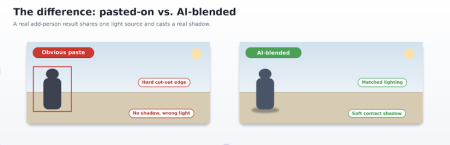
The difference between a believable add and an obvious one is almost always lighting and shadow. A pasted cut-out keeps its original light and sits on the scene with a hard edge and no shadow; a good AI result re-lights the subject and grounds them with a soft contact shadow. Most misfires come from mismatched inputs, and most are fixable.
|
Problem |
How to fix it |
|---|---|
|
The person looks stuck on |
Match the framing and scale of both photos; let the tool re-render, not paste |
|
Lighting is off |
Name the light in the prompt — ‘soft daylight from the left’ — and use a well-lit source |
|
No shadow/floating |
Ask for a ‘natural contact shadow on the ground’ |
|
Face drifts or warps |
Use a sharp, front-facing source photo and regenerate |
Table 3. Common add-person problems and the fix for each.
Where it’s actually useful
This is not just for novelty group shots. The same workflow quietly solves a lot of everyday problems — adding a remote colleague to a team photo, staging a room for a property listing, putting a person into a product or marketing scene, or completing a family picture when someone could not be there. Because the output is sized to a chosen aspect ratio, the same image works for a website, a slide, or a social post.

A note on honesty
Because these tools generate rather than document, keep them on the right side of the line. An AI-added person is fine for marketing, mockups and personal keepsakes, but not for anything that has to be true — news images, evidence, or testimonials. Disclose edits where it matters, keep the originals, and never insert a real person into a scene in a way that misrepresents them.
The bottom line
Adding a person to a photo is now a two-minute task, and the quality comes down to your inputs and your prompt more than the tool. Match the framing, name the lighting, and let the model re-render rather than paste. Start with a free tier, keep the edits honest, and reach for a pro editor only when you need pixel-level control.
It helps to know what sits behind the tool. Overchat’s add-person feature is one of 150+ purpose-built tools inside Overchat AI, an all-in-one app spanning image, video, audio and text generation that runs on the latest models from GPT, Claude, Gemini, Grok, Kimi and Qwen. It works on web, iOS and Android and is used by more than 350,000 people. For a team that would otherwise pay for separate ChatGPT, Claude and Gemini subscriptions, having those models under one login is the practical draw, though for a single edit you only need the one tool.
FAQ
How do I add a person to a photo with AI?
Upload the scene and a photo of the person, describe where they should go, then download the result. The model re-renders that area to match lighting and perspective, usually in 10 to 30 seconds.
What is the best app to add a person to a photo?
For fast, realistic results, prompt-driven tools like Overchat and Somake lead; Fotor and Picsart suit general editing; Photoshop’s Generative Fill offers the most control. The right pick depends on speed, budget and how much control you want.
Can I add two people who were not photographed together?
Yes. Upload both and describe the arrangement, such as “place them side by side.” For the most natural result, use photos with similar framing, scale and lighting.
Will the result look real?
Usually, if the inputs match and the tool re-renders rather than pastes. Check the edges, shadow and lighting, and regenerate if the person looks stuck on.
Are these tools free?
Some offer a free tier or trial; the most realistic models are often on paid plans. For occasional use, free options are usually enough.
Do these tools keep my photos?
It varies. Some say images are processed and not stored; others may keep them. Check the privacy policy and avoid uploading someone else’s photo without consent.